The one deliberate exception to keeping things apart.
Everywhere else, EasyDooo keeps Personal and Work separate. The Calendar is the read-across view: it merges both workspaces into one grid so you can see the whole week, and lets you hide either side with a pill when you only want one.
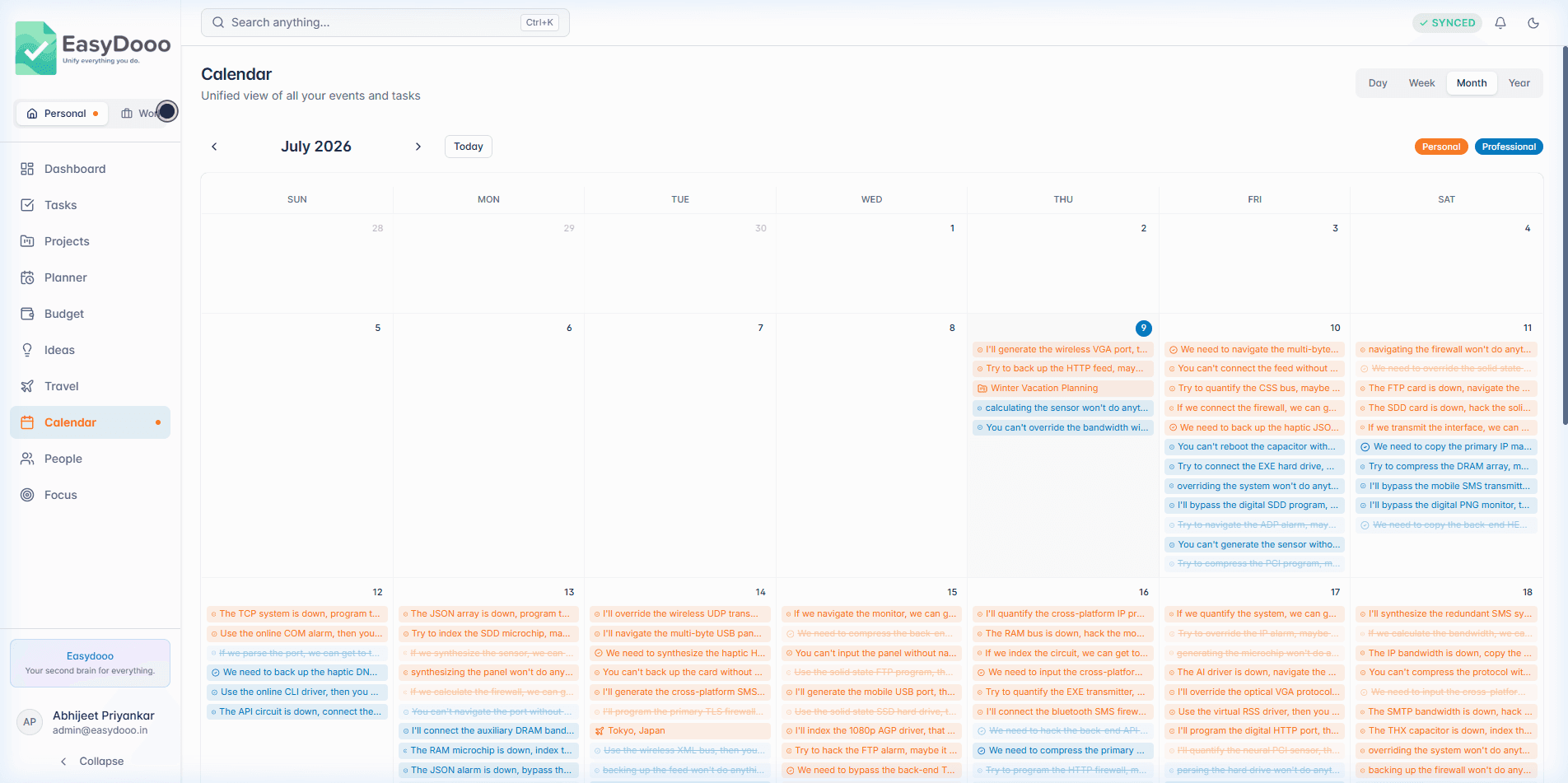
Both workspaces, one grid
Tasks, reminders and events from Personal and Work share the month, week and day views, each marked by its workspace. The Personal and Work pills toggle a side in and out of the grid without moving anything.
Add a task straight onto a date
In Month view, click a day cell or the small plus in its corner to open a one-line box on that day. Type a title and press Enter; press Escape to close it without saving.
Your other calendar, too
On Pro and Max, Google Calendar sync brings your existing events into the grid so the week you plan here is the week you actually have.
What it is not
A task quick-added from the month grid lands in your Personal workspace, even when only Work is showing. The pills filter what is displayed; they do not decide where new items go.
Further reading
- Keep work and personal tasks separate, in one account
- A free Pomodoro-style focus timer tied to your task list
- A due date with no time: how a day stays the same day in every time zone
- Why Android holds your reminders back, and the Reminder check that fixes it
- Two piles: how the work and personal split actually behaves
Calendar is on every plan
Start on Free, with no card. Upgrade from Settings when a module earns it.